How to Set Up a Professional Twitch Stream
Get a clean, professional Twitch setup — scenes, OBS settings, audio, and a go-live checklist — in one session. No months of trial and error.
You downloaded OBS. You stared at it for 20 minutes, googled "OBS settings for Twitch," got seven different answers, and closed the tab.
That's where most new streamers get stuck. The technical setup isn't hard — but nobody explains it in the right order, for your specific hardware, with a clear reason for each decision.
Here's what a complete, professional Twitch stream setup actually looks like, and how to get there without months of trial and error.
Why most streaming guides fail you
The typical "Twitch setup guide" gives you a list of recommended bitrate numbers and calls it done. The problem is that bitrate recommendations are meaningless without knowing your upload speed, your CPU specs, or whether you're encoding on your CPU or GPU.
A good setup process starts by understanding your situation, then builds the right configuration from there. What works for a gaming PC with a dedicated GPU and 50 Mbps upload is completely different from what works on a MacBook Air with a shared chip.
The other failure mode: guides that cover one piece (OBS settings, or overlay design, or alerts) without connecting them into a working system. You end up with a collection of half-done things instead of a stream that runs smoothly from start to finish.
The five things every professional stream needs
Before touching any settings, know what you're actually building:
1. Scenes — not just a single game capture
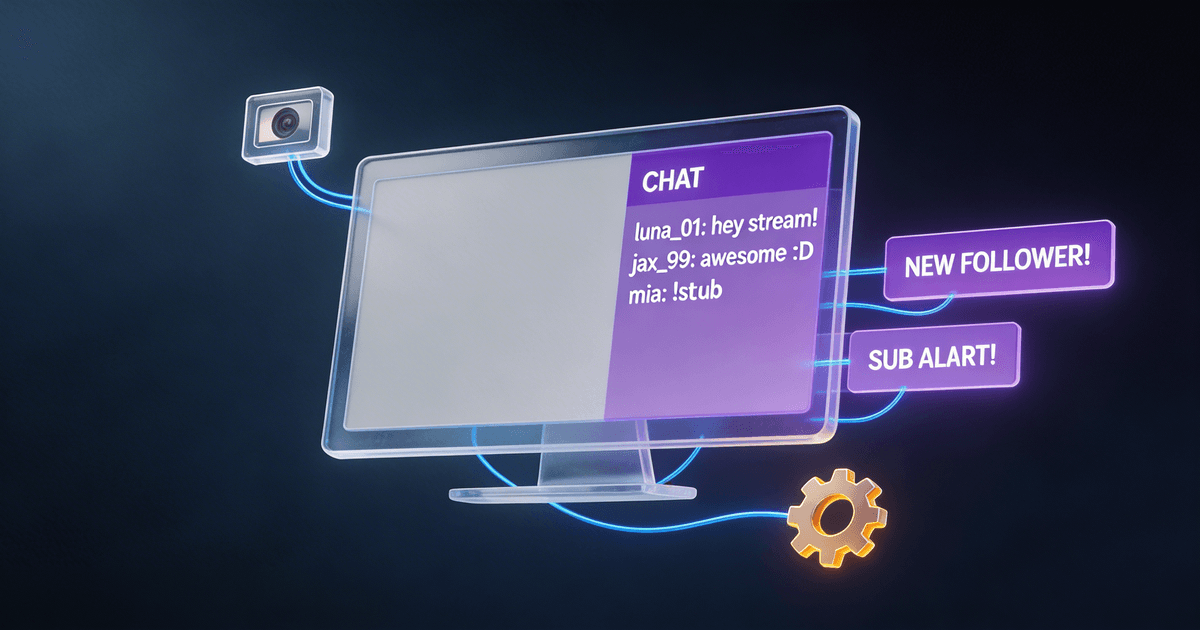
Most beginners set up one scene: game + webcam. Professional streamers build 4–6 scenes: a starting-soon screen, a gameplay scene, a just-chatting scene, a BRB screen, a raid outro, and an ending screen. Each serves a purpose. Missing any of them forces awkward moments mid-stream.
2. Audio that sounds clean
Viewers forgive average video. They don't forgive bad audio. Your setup needs proper gain levels, noise suppression if you're in a noisy environment, and filters that reduce the artifacts that come with cheap mics — without making your voice sound hollow.
3. Encoding that doesn't drop frames
Dropped frames are the most common and most fixable streaming problem. The solution isn't always more bitrate — sometimes it's switching from software encoding (CPU) to hardware encoding (your GPU), or lowering your canvas resolution while keeping your output resolution the same.
4. Visual identity
A stream with a coherent color scheme, matching fonts in your overlays, and a webcam frame that fits your content looks professional even with basic gear. A stream with generic overlays and a floating webcam in the corner looks amateurish even with a $500 camera.
5. A repeatable go-live workflow
The worst time to realize your mic is muted is when chat starts telling you. The best streamers follow a pre-stream checklist: audio check, scene check, title and category set in the Twitch dashboard, and a test run before going live. It takes 3 minutes and prevents the awkward moments that make new streamers cringe at their own VODs.
How to approach your setup
Start with a hardware audit. Before deciding on any settings, figure out what your computer can actually handle. Open task manager (Windows) or Activity Monitor (Mac) and check your CPU while running your game. If you're already at 70%+ before OBS is open, you need hardware encoding or you'll drop frames constantly.
Pick your software and stick to it. OBS Studio is the default for a reason — it's free, runs on everything, and has the most community support. Streamlabs is OBS with a built-in overlay market and alert system, better for beginners who want a faster visual setup. Twitch Studio is the easiest but the least flexible. Pick one. Switching mid-setup costs more time than it saves.
Build your scenes before your settings. Counter-intuitive, but right. Get your scenes looking roughly how you want them first, then optimize settings. If you do it the other way, you tune settings for a scene composition that changes later.
Test your audio before you go live. Record a one-minute local clip in OBS and play it back. Listen for clipping (distortion at loud volume), background noise, and reverb. Fix these before your first stream, not during it.
Common mistakes that cost streamers months
Overcomplicating the overlay before building an audience. Elaborate overlays don't grow your channel. Good content does. Get a clean, simple visual identity working first. Upgrade it when you have viewers who care.
Streaming at too high a bitrate. Higher bitrate doesn't always mean better quality. It means more data — which can cause issues for viewers with slower connections and more strain on Twitch's servers. 4000–6000 Kbps is sufficient for most 1080p30 streams. Match your bitrate to your upload speed with headroom to spare.
Ignoring the Twitch dashboard during setup. Your stream title, category, and tags affect who Twitch recommends you to. An untagged stream in the wrong category is invisible to the right audience.
Not setting up a starting-soon or ending scene. First impressions matter. Showing up on screen mid-setup, or cutting to a blank screen at the end, looks unprofessional. A simple starting-soon graphic and a proper ending screen take 20 minutes to set up and pay off every stream.
What AI can do for your setup
Stream setup is a solved problem. Encoding settings, scene composition, audio configuration, go-live checklists — someone has already figured out the right approach for every hardware configuration and content type. The challenge is applying that knowledge to your specific situation.
Feed in your hardware specs, what software you're using, and what kind of content you're streaming — and get back a complete, customized setup document instead of spending an hour sifting through conflicting forum posts.
The Twitch Stream Manager on Creator Skills is built for exactly this. Load it into Claude or ChatGPT, describe your setup (hardware, camera, mic, streaming software, goals), and get back:
- Hardware-based encoding recommendations specific to your CPU/GPU
- A complete scene list with composition advice for your content type
- Audio filter chain tailored to your microphone
- Overlay recommendations that fit your budget (free vs. paid)
- A repeatable pre-stream / go-live / post-stream checklist
The goal is to go from "I don't know where to start" to a complete, professional setup document in a single session — not weeks of YouTube tutorials.
How long does setup actually take?
With clear guidance: 2–4 hours for a complete working setup.
That includes: scenes built, audio configured, encoding tested, and a go-live checklist ready. Not a perfect setup — you'll refine things over your first few streams — but a functional, professional one.
Without clear guidance: months. Seriously. The trial-and-error approach is how you end up six months in with still-dropping frames and a still-amateur-looking stream.
The difference is having a process instead of searching for answers one setting at a time.
What about gear?
Here's the honest take: your gear matters less than your setup.
A $60 Blue Yeti sounds worse than a $30 USB headset configured correctly. A built-in webcam with proper lighting looks better on stream than a $400 camera in a dark room. Start with what you have, get the setup right, and upgrade specific pieces when you hit actual limitations — not because someone in a YouTube comments section said you need a specific microphone to be taken seriously.
The one exception: upgrade your microphone first if you're on a built-in laptop mic. That's the one piece of gear that genuinely hurts your stream before anything else does.
Next steps
- Audit your hardware before touching any settings
- Pick your streaming software and don't switch
- Build your scenes (at minimum: gameplay, starting-soon, ending screen)
- Configure and test your audio before your first stream
- Set up a pre-stream checklist and actually use it
If you want a shortcut through all of this, the Twitch Stream Manager will walk you through each step with recommendations specific to your hardware and goals. Load it into your AI, describe your setup, and you'll have a complete configuration document in one session.
Related: AI Tools for Twitch Streamers: What to Buy First — a buyer's guide for streamers choosing which Creator Skills workflows to start with.
Once you're streaming: How to Turn Twitch Clips Into Viral Shorts shows you how to repurpose your best moments into TikToks, YouTube Shorts, and Reels. And the Community Comment Responder helps you stay engaged with your audience between streams.
About the author
Content, CreatorSkills
The CreatorSkills team publishes practical guides on AI workflows for content creators.
About CreatorSkills