How to Turn Twitch Clips Into Viral Shorts
Learn the exact workflow to capture, edit, and publish Twitch clips as short-form content that grows your audience between streams.
You just finished a 4-hour stream. You had three genuinely funny moments, one clutch play, and a hot take that got chat going. But your VOD has 12 views, and nobody who wasn't there will ever see them.
That's the trap most streamers fall into. They think streaming is the content. It's not. Your stream is the raw material. The clips you pull from it—that's the content that builds your brand.
Here's how to turn those moments into short-form videos that actually reach new people.
Why Most Streamers Fail at Clipping
Before we get to the workflow, let's talk about what doesn't work.
The "clip everything" approach. Streamers who try to capture every decent moment end up with 47 clips from a single stream, edit two of them, and burn out by Wednesday. Clipping is supposed to save time, not create more work.
The "I'll do it later" method. You tell yourself you'll review the VOD tomorrow. Tomorrow becomes next week. By then, the moment has passed, and nobody cares about that game anymore.
The "just upload raw" mistake. You export a 2-minute clip with 45 seconds of setup and dead air at the end. TikTok's algorithm sees low completion rates and stops showing it.
The streamers who win at this have a system. Not a chaotic "whenever I feel like it" approach. A repeatable workflow that turns streams into content on autopilot.
The Capture Strategy
You have three options for getting clips. Choose one based on your situation.
Option 1: Automated Clipping (Best for Busy Streamers)
If you're streaming 5+ times a week, you don't have time to manually clip. Use automation.
Tools like Castr or Ritestream can detect spikes in chat activity, sudden viewer count jumps, or audio spikes (laughing, shouting, surprise) and automatically create clips. You review them later and discard the duds.
Best for: Streamers who want consistency without the manual work.
Trade-off: You'll get some false positives. Not every chat spike is clip-worthy. But the 10 minutes of reviewing beats the 45 minutes of manual clipping.
Option 2: Mod-Assisted Clipping (Best for Community Builders)
Train a trusted mod to clip moments during stream. Give them a simple system:
- !clip command they can use when something clip-worthy happens
- A shared Google Doc where they timestamp moments
- Permission to clip anything funny, impressive, or discussion-worthy
Best for: Streamers with engaged communities who want to involve viewers.
Trade-off: You're relying on someone else's judgment. But mods who know your content often spot moments you'd miss.
Option 3: Post-Stream Review (Best for Quality Control)
Watch your VOD at 2x speed, mark timestamps of potential clips, then batch-export them. This takes 20-30 minutes after each stream but gives you full control.
Best for: Streamers who prioritize quality over quantity and stream 2-3 times per week.
Trade-off: It's time-consuming. But if you're only streaming a few times a week, you have the bandwidth.
What Makes a Clip Worth Editing?
Not every moment deserves to become content. Before you spend 30 minutes editing, run it through this checklist:
The 3-Second Rule. If the first 3 seconds don't make someone want to keep watching, skip it. No long intros. No "what's up chat" warmups. Start at the peak moment.
Context Clarity. Can someone who wasn't watching understand what's happening? If your clip requires 90 seconds of backstory, it's not a clip—it's a stream highlight for your VOD channel.
Platform Fit. A 4-minute clip with gradual build-up might work on YouTube. It won't work on TikTok. Know where you're posting before you decide what to clip.
Audio Quality. If game audio drowns out your voice, or there's echo, or your mic peaked, fix it in post or skip it. Bad audio kills engagement faster than bad video.
The Editing Workflow
Once you have 5-10 clips worth editing, batch them. Don't edit one clip, post it, then start the next. Do all your editing in one session.
Step 1: Import and Rough Cut (2 minutes per clip)
Drop your clip into CapCut, Premiere Rush, or DaVinci Resolve. Trim to the core moment. Cut the 10-second setup where you're explaining the context. Cut the 5-second dead air at the end. Get it under 60 seconds.
Step 2: Add the Hook (30 seconds)
Start with text that grabs attention:
- "POV: You've been streaming for 3 hours and this happens"
- "When chat says you can't clutch this"
- "This hot take got me cancelled in 4 streamer Discords"
The hook explains what they're about to see before the clip starts. (Stuck on hooks? The Viral Hook Generator creates scroll-stopping openers for any clip in under 2 minutes.)
Step 3: Captions (2 minutes)
Auto-generate captions and style them. White text with a black outline. Position them in the lower third so they don't block the action. Add them for your entire audio — people watch clips with sound off. (The Caption Chain Generator builds timed caption sequences that keep viewers locked in even on mute.)
Step 4: Aspect Ratio and Export (30 seconds)
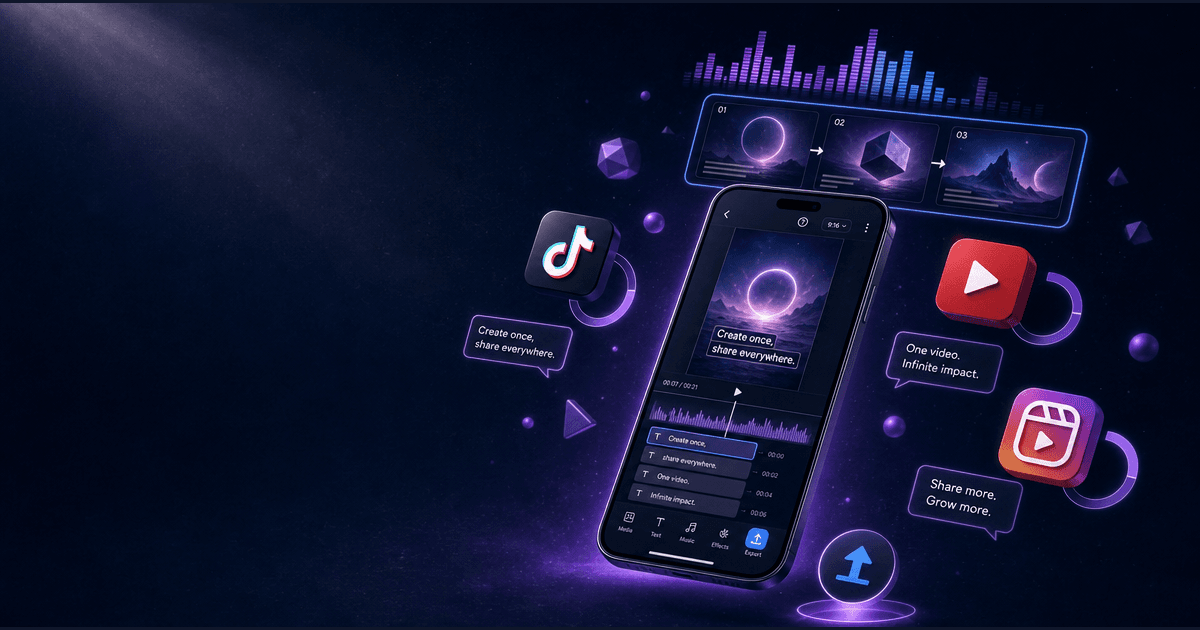
Export as 9:16 (1080x1920) for TikTok/Reels/Shorts. Use H.264 codec. Keep file size under 287MB for TikTok. 60fps if possible, 30fps minimum.
Total time per clip: 5 minutes once you get the workflow down.
Platform-Specific Optimization
The same clip needs different treatment for different platforms.
TikTok
- Length: 15-45 seconds. The algorithm favors completion rate, and people bail after 45 seconds.
- Hook: Front-load the most engaging moment. TikTok users scroll fast.
- Hashtags: 3-5 max. #twitch #twitchstreamer #[yourgame] #gaming #fyp
- Sounds: Use trending sounds when possible, but don't force it. Original audio often performs better for gaming content.
- Best times: 6-9am, 12-2pm, 7-10pm in your audience's timezone.
YouTube Shorts
- Length: Up to 60 seconds, but 30-45 is the sweet spot.
- Hook: Include "Shorts" in your title or description. The algorithm uses this for categorization.
- Hashtags: #Shorts #gaming #[yourgame] #twitch
- CTA: "Subscribe for more gameplay" works better than "Follow me on Twitch." You're building a YouTube audience, not just redirecting.
- Best times: Mornings and lunch work well. YouTube's audience skews slightly older than TikTok.
Instagram Reels
- Length: 15-30 seconds. Reels favor shorter content.
- Hook: Saves and shares matter more than likes. Create moments people want to send to friends.
- Hashtags: Limit heavily. Instagram penalizes hashtag spam.
- Warning: Reels frequently shadowban Twitch content. Don't rely on this as your primary platform.
The Weekly Workflow
Here's a sustainable system that doesn't burn you out:
After every stream:
- Spend 10 minutes reviewing what happened
- Mark 3-5 potential clips (if doing manual review)
- Or review auto-generated clips and approve/reject
Weekly batch session (1-2 hours):
- Edit 5-7 clips
- Export in all three formats
- Write captions for each platform
- Schedule using Buffer, Later, or native scheduling
Content calendar:
- 2 TikToks per day
- 1 YouTube Short per day
- 3-4 Reels per week (if using Reels at all)
This gives you 20+ pieces of content per week from 3-4 streams. More than enough to stay visible between live broadcasts.
Measuring What Works
After a month, you should have enough data to optimize. Look for patterns:
Which clip types perform best? Gaming highlights, funny moments, hot takes, or community interactions?
What hooks get views? POV format, "When..." format, or direct statements?
What length gets best retention? Do your 15-second clips outperform 45-second ones?
What posting times work? When does your audience actually engage?
Double down on what works. Cut what doesn't. The goal isn't to post 50 clips a week—it's to post 10 clips that actually grow your audience.
Getting Started Today
You don't need fancy equipment or expensive software. You need a decision: every stream produces at least one piece of short-form content.
If you want to skip the learning curve and get a system that works immediately, the Twitch Clip & Highlight Generator skill builds this entire workflow for you. It guides you through capture methods, editing templates, and platform-specific optimization so you're not starting from scratch.
For turning full streams into multiple content formats beyond just clips, the Video-to-Everything Repurposer handles the broader repurposing workflow — blog posts, social threads, newsletters, and more from a single source.
Either way, start today. Your next stream should produce your next viral clip — not just another VOD with 12 views.
Want to level up your whole stream workflow? Check out the Twitch Stream Manager for pre-stream, mid-stream, and post-stream AI workflows, or read our guide on AI Tools for Twitch Streamers for the complete toolkit.
Clips only work if you have an audience to see them. If you're starting from zero followers, read How to Grow on Twitch in 2026 for the tactics to land your first 100 loyal viewers.
About the author
Founder, CreatorSkills
Caleb Leigh is the founder of CreatorSkills and focuses on buyer-first AI workflows for content creators.
Read the founder profile