Best AI Skills for Cursor IDE in 2026
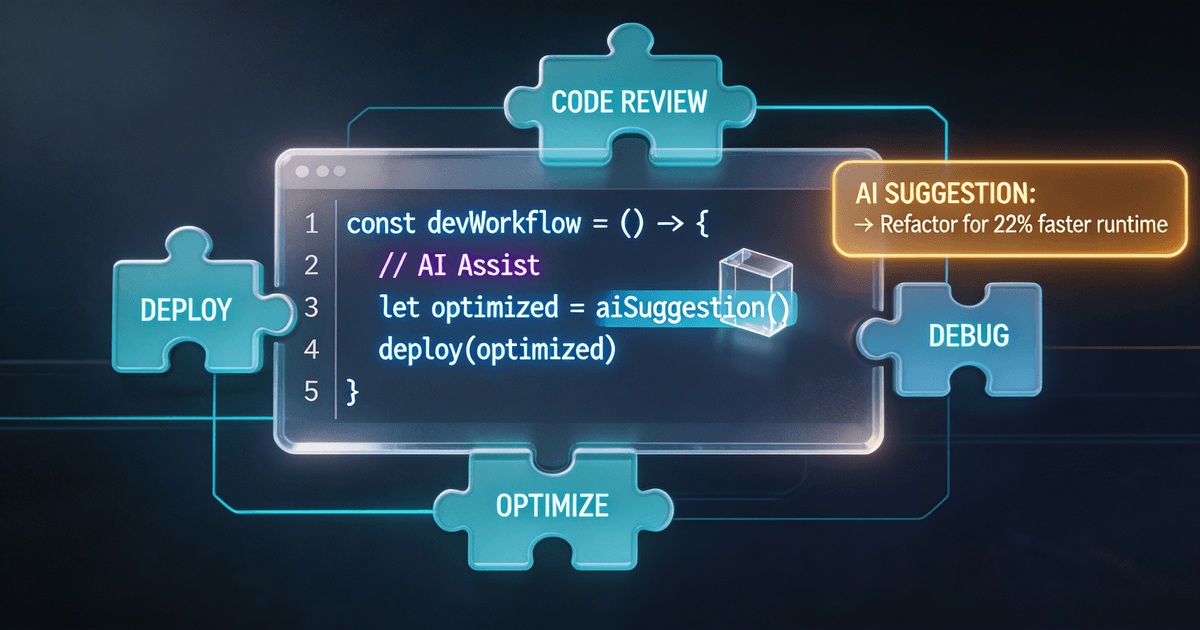
Cursor IDE supports AI skills as .mdc rules files that live in your project directory. This guide covers the best CreatorSkills workflows for Cursor, how to install them, and why project-scoped skills beat chat-based prompting for repeatable content work.
Most AI skill marketplaces assume you work in a chat window. You paste a prompt, get output, copy it somewhere else, and repeat. If you build content inside Cursor, that workflow feels backwards: your projects, templates, and files are right there in the editor, but your AI instructions live in a completely separate tab.
Cursor solves this with rules files. A .mdc file dropped into your project's .cursor/rules/ directory becomes part of your AI context automatically. No pasting, no context-switching, no setup ritual every time you open a project. The skill just works whenever you're in that workspace.
CreatorSkills ships every Universal skill in .mdc format alongside the standard SKILL.md and ChatGPT versions. That means you can install a tested content workflow into Cursor the same way you'd add a config file: download it, drop it in, and start using it.
Here are the five best skills to start with.
1. Long-Form Script System: write structured video scripts without leaving your editor
Price: $7 · Category: Scripts & Outlines
If you create tutorials, educational videos, or long-form YouTube content, you already know the pain of switching between a script doc, your project files, and an AI chat window. The Long-Form Script System gives Cursor a complete scriptwriting framework: attention hooks, retention loops, visual callouts, and energy pacing built into every output.
What makes this work especially well in Cursor is project context. When the skill lives as a rules file alongside your project, the AI can reference your actual content (code examples, documentation, tutorial outlines) while writing the script. You get scripts that match what you're actually building, not generic filler.
Best for: Developer-educators, tutorial creators, and tech YouTubers who script inside the same workspace as their code.
Browse the Long-Form Script System →
2. Video-to-Everything Repurposer: turn one video into 15+ platform-specific posts
Price: $7 · Category: Content Repurposing
You published a 20-minute tutorial. Now you need a Twitter thread, a LinkedIn post, an Instagram caption, a YouTube Short script, and a newsletter section, all saying roughly the same thing but formatted for each platform. The Video-to-Everything Repurposer handles the conversion.
Drop your transcript into Cursor with this skill active and you get platform-specific outputs with the right formatting, tone, and length for each destination. No copy-paste-and-rewrite cycle. The skill adapts your voice for Twitter's punchiness, LinkedIn's professional tone, and Instagram's visual-first structure.
Best for: Creators who publish on 3+ platforms and spend hours manually repurposing each video.
Browse Content Repurposing Skills →
3. Brand Voice Codex: keep your voice consistent across every piece of content
Price: $7 · Category: Brand & Voice
Here's a problem that gets worse the more content you produce: your YouTube scripts sound like you, but your tweets sound generic, your LinkedIn posts sound corporate, and your newsletter sounds like someone else entirely. The Brand Voice Codex reverse-engineers your communication style (vocabulary, rhythm, humor, quirks) and codifies it into a portable voice profile.
In Cursor, this skill becomes a persistent voice layer. Every AI-assisted draft in that project inherits your voice profile because the rules file is always loaded. You don't need to remind the AI "write in my style" on every prompt. It's baked into the workspace.
Best for: Creators who produce across multiple formats and platforms and want every piece to sound unmistakably like them.
4. Analytics Translator: turn raw metrics into a content strategy you can act on
Price: $7 · Category: Analytics & Optimization
You exported your YouTube Studio data. Now what? The Analytics Translator takes raw metrics from YouTube, TikTok, or Instagram and produces plain-English strategy reports. It spots patterns across videos, identifies what's working, and gives you specific experiments to run next week.
This is one of those skills that benefits from living in Cursor because you can keep your analytics exports, strategy notes, and content plans in the same project. Feed it a CSV or paste your dashboard numbers and get back a report you can actually use, not a wall of "your impressions increased 12%" statements you could read yourself.
Best for: Data-minded creators who track performance but want faster insight-to-action loops.
Browse Analytics & Optimization Skills →
5. Trend Hunter System: find trending topics before they're saturated
Price: $7 · Category: Analytics & Optimization
Timing matters more than most creators admit. The Trend Hunter System surfaces trending topics across YouTube, TikTok, and Google before saturation hits. It scores each trend's virality potential (1–10), estimates how long the window will last, and suggests the angle you should take based on your niche.
Inside Cursor, this pairs well with a content planning workflow. Keep a content-ideas/ directory in your project, run the Trend Hunter with current signals, and save the output alongside your editorial calendar. When it's time to pick your next video topic, the research is already there.
Best for: Creators who want to ride trends early instead of chasing them late.
Browse Analytics & Optimization Skills →
How to install any skill in Cursor
The installation process takes about 30 seconds:
-
Purchase and download the skill from CreatorSkills. Choose the
.mdcdownload format on the skill page. -
Create the rules directory if it doesn't exist yet:
mkdir -p .cursor/rules -
Move the downloaded
.mdcfile into that directory:mv ~/Downloads/skill-name.mdc .cursor/rules/ -
Open your project in Cursor. The editor picks up rules files automatically: no restart, no configuration, no extension to install.
That's it. The skill is now active for every AI interaction in that project. If you want the same skill across all projects, add it via Cursor Settings → Rules instead.
For detailed installation instructions across all platforms (Claude, ChatGPT, Claude Code, and Cursor), see our full installation guide.
Why Cursor rules beat chat-based prompting for content workflows
The biggest advantage of .mdc rules files over copy-pasting prompts into a chat window comes down to one thing: persistence.
A chat prompt disappears when you close the tab. A rules file stays in your project forever. It loads automatically, requires no setup, and works the same way every time. For creators who run the same workflows weekly (scripting, repurposing, analytics reviews, content planning) that persistence eliminates the friction that makes most people abandon AI tools after the first week.
Cursor rules are also project-scoped by default. Your YouTube channel project can have scripting and thumbnail skills loaded. Your newsletter project can have different skills for writing and audience analysis. Each workspace gets exactly the tools it needs without cluttering the others.
And because .mdc files are just text, they version-control like any other file. You can track changes, share them with collaborators, and roll back if something breaks. Try doing that with a ChatGPT conversation.
What about Claude and ChatGPT?
Cursor is the best choice when your content workflow lives alongside files, code, or project context. But it's not the only option.
If you prefer working in a conversational interface, every skill on CreatorSkills also ships in formats for Claude and ChatGPT. The installation guide walks through setup for each platform.
Not sure which tool fits your workflow? Our Claude vs. ChatGPT comparison for creators breaks down the trade-offs.
Start with one skill
Don't install five skills at once. Pick the one that maps to the task you repeat most often (scripting, repurposing, analytics, whatever it is) and use it for a full week before adding more. One skill that becomes part of your routine beats five that sit unused in a rules directory.
About the author
Founder, CreatorSkills
Caleb Leigh is the founder of CreatorSkills and focuses on buyer-first AI workflows for content creators.
Read the founder profile